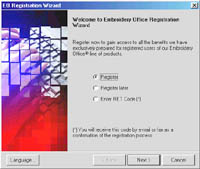
Product Registration x Internet – Step by step.
Step 2 – Search for the ASK code |
 |
- V7+
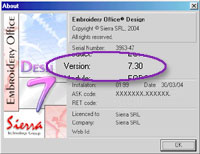
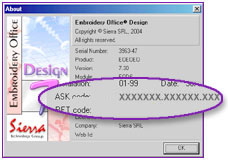
- For the product versions 7.xx and later (more recent) you can find the required ASK code in the window “About”, which you can access from the menu: Help > About >
- More Info
|
 |
- V6-
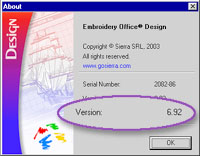
- For the product versions 6.xx and before (more older) you will be able to get the ASK code only by executing the program GetASK.exe in the computer where the Embroidery Office system is installed. Follow the program instructions.
- Note: It is not necessary that the computer in which Embroidery Office has been installed, nor the GetASK program executed is connected to the Internet.
- Download GetASK.exe
- More Info
|

Step 3 – Complete and send the Registration Form |
|
- Complete each one of the fields with precision.
- Click on the button “Send”
- Notes:
- Avoid typing errors. Don’t use Capital Letters. Include the area code when inserting pone numbers.
- Write down an e-mail address you frequently use and that is active. In this address you will receive the RET/REG code and the access passwords to MyHome@EO.
|
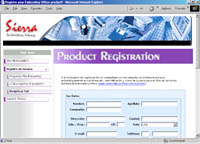 |
| |
Following, a message will appear on screen indicating the send status.
If this has been successful, go to the next step. If not, follow the on screen instructions and try again. |
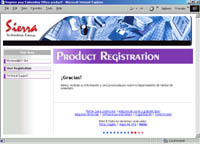 |
Step 4 – Receive the confirmation of your registration. |
|
When the automatic registration has been successful, the registration system sends an immediate e-mail in response, confirming the request reception.
 | In the aforementioned e-mail, you will receive the RET/REG Code to enter it in your Embroidery Office program when it asks for it. - More Info |
| Besides you will receive the User Id and Password to access the service area and user attention, called MyHome@EO. - More Info |
If you don’t receive an e-mail in response, any of the following situations might be occurring:
- The automatic registration couldn’t be done by technical causes. It is possible that your registration request must be processed manually. The answer may take not more than 10 days.
- Wrong e-mail address. It is probably that the request may be put aside for considering the information inserted incorrect.
- Wrong ASK code typing.
- Product registered previously, not being able to verify the validity of the information recently inserted.
- The registered product does not match the manufacturers register, or it has been annulled for some specific cause (loss, theft, defective, replacement, etc).
- Some other unknown reason.
If you have not received a confirmation message within 10 days from your registration; complete the next form so that we can assist you in this process.
Step 5 – Enjoy our services |
|
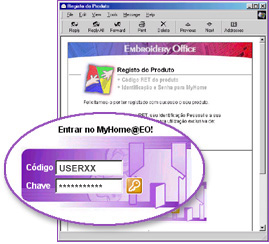
Enter MyHome@EO, http://embroideryoffice.com/myhome.
Insert your:
- User Identification
- Access Password
Keep in contact. Continue updated and enjoying the benefits of Registered Users. |
 |
|